
Join the Conversation
- Find Answers
- :
- Using Splunk
- :
- Splunk Search
- :
- How to update table?
- Subscribe to RSS Feed
- Mark Topic as New
- Mark Topic as Read
- Float this Topic for Current User
- Bookmark Topic
- Subscribe to Topic
- Mute Topic
- Printer Friendly Page
- Mark as New
- Bookmark Message
- Subscribe to Message
- Mute Message
- Subscribe to RSS Feed
- Permalink
- Report Inappropriate Content

Hi,
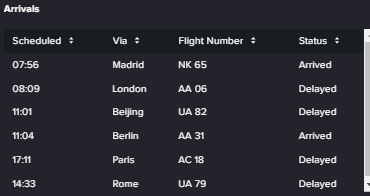
Is it possible to Make a table like in the example below, that would refresh every 10 minutes and update the status column to either Arrived or Delayed status and change the color of that row to either green or red.
- Mark as New
- Bookmark Message
- Subscribe to Message
- Mute Message
- Subscribe to RSS Feed
- Permalink
- Report Inappropriate Content


Hi @Edwin1471,
yes all the requirememts you listed are possible and not difficoult to implement, but it's difficoult without any information on your data.
Could you share some sample of your data?
Anyway, supponing that in each event you have all the fields (scheduled, via, flight, status), you could run a search like the following:
index=your_index
| stats values(scheduled) AS scheduled values(via) AS via values(status) As status BY flight
| table scheduled via flight status
| sort scheduled
About autorefresh, you have to set in the dashboard this parameter.
If you're using Dashboard Studio see at https://community.splunk.com/t5/Dashboards-Visualizations/How-to-set-up-the-auto-refresh-on-a-dashbo...
If you're using Dashboard Classic, you have to insert in the first row
<form refresh="30">
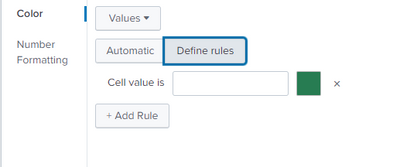
For the colours, you should use the gui options in the panel's columns

and assign the colours you like to the possible values
Ciao.
Giuseppe
- Mark as New
- Bookmark Message
- Subscribe to Message
- Mute Message
- Subscribe to RSS Feed
- Permalink
- Report Inappropriate Content
Hi @Edwin1471,
yes all the requirememts you listed are possible and not difficoult to implement, but it's difficoult without any information on your data.
Could you share some sample of your data?
Anyway, supponing that in each event you have all the fields (scheduled, via, flight, status), you could run a search like the following:
index=your_index
| stats values(scheduled) AS scheduled values(via) AS via values(status) As status BY flight
| table scheduled via flight status
| sort scheduled
About autorefresh, you have to set in the dashboard this parameter.
If you're using Dashboard Studio see at https://community.splunk.com/t5/Dashboards-Visualizations/How-to-set-up-the-auto-refresh-on-a-dashbo...
If you're using Dashboard Classic, you have to insert in the first row
<form refresh="30">
For the colours, you should use the gui options in the panel's columns
and assign the colours you like to the possible values
Ciao.
Giuseppe


Join the Splunk Community Slack to learn, troubleshoot, and make connections with fellow Splunk practitioners in real time!
Join Splunk User Groups to connect and learn in-person by region or remotely by topic or industry.
A Four-Part Event Series: Full Stack Observability For the AI Era
SOC4Kafka - New Kafka Connector Powered by OpenTelemetry
Event Series: Level up your SOC: Advancing with Splunk Enterprise Security
