
Join the Conversation
- Find Answers
- :
- Using Splunk
- :
- Splunk Search
- :
- Re: Choose one result in Splunk table Query
- Subscribe to RSS Feed
- Mark Topic as New
- Mark Topic as Read
- Float this Topic for Current User
- Bookmark Topic
- Subscribe to Topic
- Mute Topic
- Printer Friendly Page
- Mark as New
- Bookmark Message
- Subscribe to Message
- Mute Message
- Subscribe to RSS Feed
- Permalink
- Report Inappropriate Content

Hello All,
1) I would like to add radio button / any way to select - one of the results of my below REST query search,
QUERY : |rest /services/data/ui/views | table id label updated "eai:userName" "eai:data" "eai:appName"
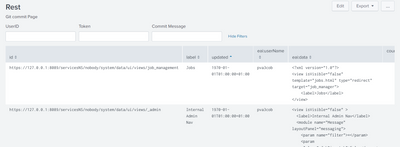
2) This Query search is saved as a dashboard (auto-refresh) and I have added few text boxes (User Name, Commit Branch, User Token) as show in the attached image. These text boxes will be manually filled by user.
Use Case: I need to choose any one row via radio button (or any other technical way) and then click on the SUBMIT button to send the selected row data and text box (manually entered by user) data to my custom python script.
What is the way to achieve this use case in Splunk, Any help on this is appreciated.
Thanks!
- Mark as New
- Bookmark Message
- Subscribe to Message
- Mute Message
- Subscribe to RSS Feed
- Permalink
- Report Inappropriate Content

(Because your search is likely to result in many rows, dropdown is a better choice than radio button. I will use dropdown in example.) To set up a selector for id, for example, put the following in the "Search String" box under "Dynamic Options":
|rest /services/data/ui/views
| stats count by id
then put the string id in both "Field for Label" and "Field for Value". If you inspect Simple XML source, you'll see something like
    <input type="dropdown" token="id_tok" searchWhenChanged="true">
      <label>id</label>
      <fieldForLabel>id</fieldForLabel>
      <fieldForValue>id</fieldForValue>
      <search>
        <query>|rest /services/data/ui/views
| stats count by id</query>
      </search>
      <choice value="%">Any</choice>
    </input>
In the above, I also added a static option "Any" with value of "%".
Similarly, you can add a dynamic dropdown for label,
    <input type="dropdown" token="label_tok" searchWhenChanged="true">
      <label>label</label>
      <fieldForLabel>label</fieldForLabel>
      <fieldForValue>label</fieldForValue>
      <search>
        <query>|rest /services/data/ui/views
| stats count by label</query>
      </search>
      <choice value="%">Any</choice>
      <default>%</default>
    </input>
And so on.
Then, in the panel search box, enter
| rest /services/data/ui/views
| where id LIKE "$id_tok$" AND label LIKE "$label_tok$"
| table id label updated "eai:userName" "eai:data" "eai:appName"
Hope this helps.
- Mark as New
- Bookmark Message
- Subscribe to Message
- Mute Message
- Subscribe to RSS Feed
- Permalink
- Report Inappropriate Content
(Because your search is likely to result in many rows, dropdown is a better choice than radio button. I will use dropdown in example.) To set up a selector for id, for example, put the following in the "Search String" box under "Dynamic Options":
|rest /services/data/ui/views
| stats count by id
then put the string id in both "Field for Label" and "Field for Value". If you inspect Simple XML source, you'll see something like
    <input type="dropdown" token="id_tok" searchWhenChanged="true">
      <label>id</label>
      <fieldForLabel>id</fieldForLabel>
      <fieldForValue>id</fieldForValue>
      <search>
        <query>|rest /services/data/ui/views
| stats count by id</query>
      </search>
      <choice value="%">Any</choice>
    </input>
In the above, I also added a static option "Any" with value of "%".
Similarly, you can add a dynamic dropdown for label,
    <input type="dropdown" token="label_tok" searchWhenChanged="true">
      <label>label</label>
      <fieldForLabel>label</fieldForLabel>
      <fieldForValue>label</fieldForValue>
      <search>
        <query>|rest /services/data/ui/views
| stats count by label</query>
      </search>
      <choice value="%">Any</choice>
      <default>%</default>
    </input>
And so on.
Then, in the panel search box, enter
| rest /services/data/ui/views
| where id LIKE "$id_tok$" AND label LIKE "$label_tok$"
| table id label updated "eai:userName" "eai:data" "eai:appName"
Hope this helps.


Join the Splunk Community Slack to learn, troubleshoot, and make connections with fellow Splunk practitioners in real time!
Join Splunk User Groups to connect and learn in-person by region or remotely by topic or industry.
Agentic SOC Triage: Investigating Splunk ES Notables with MCP Server and a Local LLM
All Work and No Play? Not at .conf26! Unwind at These Evening Events
Join the Hackathon at .conf26 and build a No-Code AI agent
