
Turn on suggestions
Auto-suggest helps you quickly narrow down your search results by suggesting possible matches as you type.
Dashboards & Visualizations
×
Join the Conversation
Without signing in, you're just watching from the sidelines. Sign in or Register to connect, share, and be part of the Splunk Community.
- Find Answers
- :
- Using Splunk
- :
- Dashboards & Visualizations
- :
- Re: Labels on Dashboard UI
Options
- Subscribe to RSS Feed
- Mark Topic as New
- Mark Topic as Read
- Float this Topic for Current User
- Bookmark Topic
- Subscribe to Topic
- Mute Topic
- Printer Friendly Page
- Mark as New
- Bookmark Message
- Subscribe to Message
- Mute Message
- Subscribe to RSS Feed
- Permalink
- Report Inappropriate Content
Labels on Dashboard UI

3666142
Path Finder
06-23-2021
11:28 AM
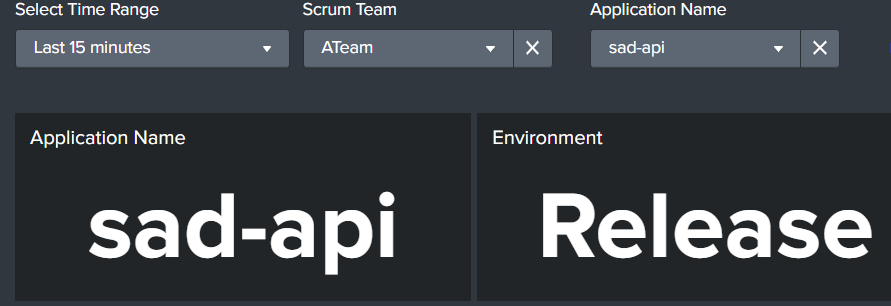
I have a panel (shown below) and I want to change its color. The panel is called Application Name and I want it to be purple. How do I do that?
In other words, I want "sad-api" to be purple not white.
- Mark as New
- Bookmark Message
- Subscribe to Message
- Mute Message
- Subscribe to RSS Feed
- Permalink
- Report Inappropriate Content

elizabethl_splu

Splunk Employee
06-25-2021
12:05 PM
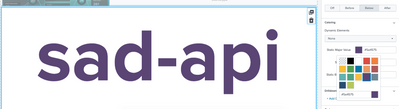
If you're willing to try out Dashboard Studio, this is possible directly in the UI:
- Mark as New
- Bookmark Message
- Subscribe to Message
- Mute Message
- Subscribe to RSS Feed
- Permalink
- Report Inappropriate Content

bowesmana

SplunkTrust
06-23-2021
02:22 PM
See this example dashboard
<dashboard theme="dark">
  <label>SadApi</label>
  <row depends="$showformat$">
    <panel>
      <html>
        <style>
          #app_name g.svg-label text {
            fill:#6a0dad !important;
          }
          #environment g.svg-label text {
            fill:#6a0dad !important;
          }
        </style>
      </html>
    </panel>
  </row>
  <row>
    <panel id="app_name">
      <single>
        <title>Application Name</title>
        <search>
          <query>| makeresults
| eval "Application Name"="SadApi"</query>
          <earliest>-4h@m</earliest>
          <latest>now</latest>
          <sampleRatio>1</sampleRatio>
        </search>
        <option name="colorBy">value</option>
        <option name="colorMode">none</option>
        <option name="drilldown">none</option>
        <option name="height">114</option>
        <option name="numberPrecision">0</option>
        <option name="rangeColors">["0x53a051","0x0877a6","0xf8be34","0xf1813f","0xdc4e41"]</option>
        <option name="rangeValues">[0,30,70,100]</option>
        <option name="showSparkline">1</option>
        <option name="showTrendIndicator">1</option>
        <option name="trellis.enabled">0</option>
        <option name="trellis.scales.shared">1</option>
        <option name="trellis.size">medium</option>
        <option name="trendColorInterpretation">standard</option>
        <option name="trendDisplayMode">absolute</option>
        <option name="unitPosition">after</option>
        <option name="useColors">0</option>
        <option name="useThousandSeparators">1</option>
      </single>
    </panel>
    <panel id="environment">
      <single>
        <title>Application Name</title>
        <search>
          <query>| makeresults
| eval "Environment"="Release"</query>
          <earliest>-4h@m</earliest>
          <latest>now</latest>
          <sampleRatio>1</sampleRatio>
        </search>
        <option name="colorBy">value</option>
        <option name="colorMode">none</option>
        <option name="drilldown">none</option>
        <option name="height">114</option>
        <option name="numberPrecision">0</option>
        <option name="rangeColors">["0x53a051","0x0877a6","0xf8be34","0xf1813f","0xdc4e41"]</option>
        <option name="rangeValues">[0,30,70,100]</option>
        <option name="showSparkline">1</option>
        <option name="showTrendIndicator">1</option>
        <option name="trellis.enabled">0</option>
        <option name="trellis.scales.shared">1</option>
        <option name="trellis.size">medium</option>
        <option name="trendColorInterpretation">standard</option>
        <option name="trendDisplayMode">absolute</option>
        <option name="unitPosition">after</option>
        <option name="useColors">0</option>
        <option name="useThousandSeparators">1</option>
      </single>
    </panel>
  </row>
</dashboard>
By setting <panel id="X"> and defining a hidden row with some embedded CSS, the change is effected by the CSS
#app_name g.svg-label text {
  fill:#6a0dad !important;
}
where the #app_name line identifies your panel identifier and then set the appropriate colour code in the fill statement.
This is a common technique for playing around with Splunk dashboard styling - what you can do comes down to your skills with CSS
Hope this helps


Got questions? Get answers!
Join the Splunk Community Slack to learn, troubleshoot, and make connections with fellow Splunk practitioners in real time!
Meet up IRL or virtually!
Join Splunk User Groups to connect and learn in-person by region or remotely by topic or industry.
Get Updates on the Splunk Community!
Meet the .conf26 AI Agent Buildathon Winners
At the .conf26 AI Agent Buildathon, Splunk users turned their operational expertise into working AI agents ...
Trusted Autonomy in the SOC: A Maturity Journey
AI is compressing attacker timelines and pushing SOC teams beyond human capacity thresholds. The next SOC ...
Supercharging Windows Security Detection Performance: Introducing Hybrid Field ...
Windows event logs—from Security auditing and Sysmon to PowerShell script blocks—form the operational backbone ...
