
Join the Conversation
- Find Answers
- :
- Using Splunk
- :
- Dashboards & Visualizations
- :
- How to create Executive Overview Dashboard with St...
- Subscribe to RSS Feed
- Mark Topic as New
- Mark Topic as Read
- Float this Topic for Current User
- Bookmark Topic
- Subscribe to Topic
- Mute Topic
- Printer Friendly Page
- Mark as New
- Bookmark Message
- Subscribe to Message
- Mute Message
- Subscribe to RSS Feed
- Permalink
- Report Inappropriate Content
How to create Executive Overview Dashboard with Status Icons / Rangemap

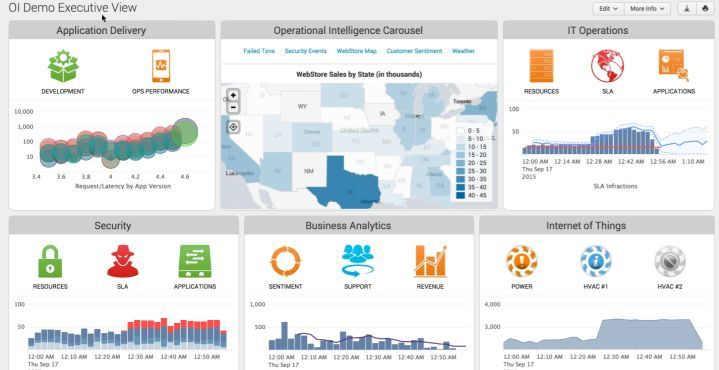
I would like to create something that is shown in the Operational Intelligence Demo of Splunk (see screenshot below). In this Dashboard there are several icons changing color depending on the status of an IT area like operations or security. The status icons are linked to a dashboard that shows more details about this area.
From what I can tell so far:
- the custom icons with changing colors can be created using custom CSS and rangemap
- Linking to another dashboard should not be a problem as well
But every status icon should change depending on the results of like 5-10 searches, for which I have already created a dashboard that is showing the individual results.
Is there a more intelligent way to get the status other than doing a complex rangemap query that does all of the searches in one query and somehow change status depending on different thresholds for each subsearch?
Can this be done with Splunk native or is extending splunk involved?
Is there any example in an App how to do something like this (free or not)?

- Mark as New
- Bookmark Message
- Subscribe to Message
- Mute Message
- Subscribe to RSS Feed
- Permalink
- Report Inappropriate Content
I have worked around that problem. I wanted to create a dashboard with live data. But you can only do a numbered of real time searches. So I worked around it by doing the search every 10 sec, for the light searches that need live data, and 1 min, for the bigger searches where the live data isn't that critical.
You can convert your dashboard to an HTML page and then use java script to restart your searches. I'll give a example:
var searchID1= new SearchManager({
                            "id": "searchID1",
                            "latest_time": "@m",
                            "earliest_time": "-1m@m",
                            "search": "index=* ...seach... | rangemap field=value ...rangemap...,
                            "status_buckets": 0,
                            "cancelOnUnload": true,
                            "app": utils.getCurrentApp(),
                            "auto_cancel": 90,
                            "preview": true,
                            "runWhenTimeIsUndefined": false
                        }, {tokens: true, tokenNamespace: "submitted"});

                        new SearchEventHandler({
                            managerid: "searchID1",
                            event: "preview",
                            conditions: [
                                {
                                    attr: "any",
                                    value: "*",
                                    actions: [
                                        {"type": "set", "token": "value1", "value": "$result.value$"},
                                        {"type": "set", "token": "range1", "value": "$result.range$"}
                                    ]
                                }
                            ]
                        });
var searchID2= new SearchManager({
                            "id": "searchID1",
                            "latest_time": "@m",
                            "earliest_time": "-1m@m",
                            "search": "index=* ...seach... | rangemap field=value ...rangemap...,
                            "status_buckets": 0,
                            "cancelOnUnload": true,
                            "app": utils.getCurrentApp(),
                            "auto_cancel": 90,
                            "preview": true,
                            "runWhenTimeIsUndefined": false
                        }, {tokens: true, tokenNamespace: "submitted"});

                        new SearchEventHandler({
                            managerid: "searchID2",
                            event: "preview",
                            conditions: [
                                {
                                    attr: "any",
                                    value: "*",
                                    actions: [
                                        {"type": "set", "token": "value2", "value": "$result.value$"},
                                        {"type": "set", "token": "range2", "value": "$result.range$"}
                                    ]
                                }
                            ]
                        });
This are your searches in javascript. Now they all have a ID so we can call that ID to restart the search:
     window.setInterval(function() {
                searchID1.startSearch();
     }, 5*1000);
     window.setInterval(function() {
                searchID2.startSearch();
     }, 60*1000);
With this you can rerun your searches. The time is in milliseconds.
I hope this helps you to your solution

Join the Splunk Community Slack to learn, troubleshoot, and make connections with fellow Splunk practitioners in real time!
Join Splunk User Groups to connect and learn in-person by region or remotely by topic or industry.
Index This | What travels the world but is also stuck in place?
Discover New Use Cases: Unlock Greater Value from Your Existing Splunk Data
Continue Your Journey: Join Session 2 of the Data Management and Federation Bootcamp ...
