
Join the Conversation
- Find Answers
- :
- Apps & Add-ons
- :
- All Apps and Add-ons
- :
- When I open an add-on in Splunk Web, why am I gett...
- Subscribe to RSS Feed
- Mark Topic as New
- Mark Topic as Read
- Float this Topic for Current User
- Bookmark Topic
- Subscribe to Topic
- Mute Topic
- Printer Friendly Page
- Mark as New
- Bookmark Message
- Subscribe to Message
- Mute Message
- Subscribe to RSS Feed
- Permalink
- Report Inappropriate Content

Morning,
I am having an issue in Splunk web console.
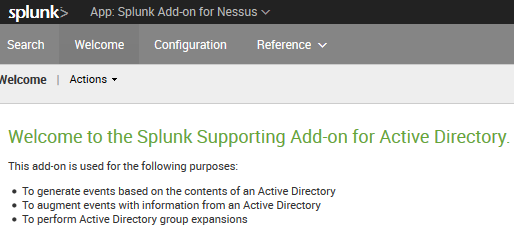
Every time I try to open an Add-on, I get redirected to a different Add-ons page, most notably is *nix Add-on.
I can disable the Add-on to eventually get to the one I am trying to open, but this is really inconvenient.
Has anyone else experienced or have a solution to this issue?

- Mark as New
- Bookmark Message
- Subscribe to Message
- Mute Message
- Subscribe to RSS Feed
- Permalink
- Report Inappropriate Content


The add-ons that you are trying to access may not have any views (dashboards, custom configuration screens, etc) in Splunk Web. If you make an add-on "visible" in Splunk Web, but the add-on doesn't have any views to show, then this can happen.
In the screenshot above, it looks like you are trying to get to the Splunk Add-on for Nessus. The Splunk Add-on for Nessus doesn't have any views. You can set up this add-on by going to Apps > Manage Apps and then clicking on Set up in the row for Splunk Add-on for Nessus. You can get to the inputs by going to Settings > Data inputs, then clicking on Splunk Add-on for Nessus. No custom views are required for either action.
To turn off visibility for an add-on, go to Apps > Manage Apps, then click on Edit Properties in the row for that add-on. Change Visibility from Yes to No.
- Mark as New
- Bookmark Message
- Subscribe to Message
- Mute Message
- Subscribe to RSS Feed
- Permalink
- Report Inappropriate Content
The add-ons that you are trying to access may not have any views (dashboards, custom configuration screens, etc) in Splunk Web. If you make an add-on "visible" in Splunk Web, but the add-on doesn't have any views to show, then this can happen.
In the screenshot above, it looks like you are trying to get to the Splunk Add-on for Nessus. The Splunk Add-on for Nessus doesn't have any views. You can set up this add-on by going to Apps > Manage Apps and then clicking on Set up in the row for Splunk Add-on for Nessus. You can get to the inputs by going to Settings > Data inputs, then clicking on Splunk Add-on for Nessus. No custom views are required for either action.
To turn off visibility for an add-on, go to Apps > Manage Apps, then click on Edit Properties in the row for that add-on. Change Visibility from Yes to No.
- Mark as New
- Bookmark Message
- Subscribe to Message
- Mute Message
- Subscribe to RSS Feed
- Permalink
- Report Inappropriate Content
Thank you!

Upcoming Webinar: Unmasking Insider Threats with Slunk Enterprise Security’s UEBA
.conf25 technical session recap of Observability for Gen AI: Monitoring LLM ...
A Season of Skills: New Splunk Courses to Light Up Your Learning Journey
