
Join the Conversation
- Find Answers
- :
- Using Splunk
- :
- Splunk Search
- :
- viewing transforming command reult
- Subscribe to RSS Feed
- Mark Topic as New
- Mark Topic as Read
- Float this Topic for Current User
- Bookmark Topic
- Subscribe to Topic
- Mute Topic
- Printer Friendly Page
- Mark as New
- Bookmark Message
- Subscribe to Message
- Mute Message
- Subscribe to RSS Feed
- Permalink
- Report Inappropriate Content

i want to display the output for the particular log with server name,error value and count
eg:
servername
ABCD
error value count
1 8
error value count
2 10
servername
XYZ
error value count
3 81
error value count
4 11
output should be visualized
where it should show servername ABCD..error-value and count similarly servername XYZ..error-value and count
- Mark as New
- Bookmark Message
- Subscribe to Message
- Mute Message
- Subscribe to RSS Feed
- Permalink
- Report Inappropriate Content

While there could be several options and visualization based on your need to depict Error Volume per server by Error Code, if you are on Splunk Enterprise 6.6 or higher you can try out using Pie Chart with Trellis as one of the options.
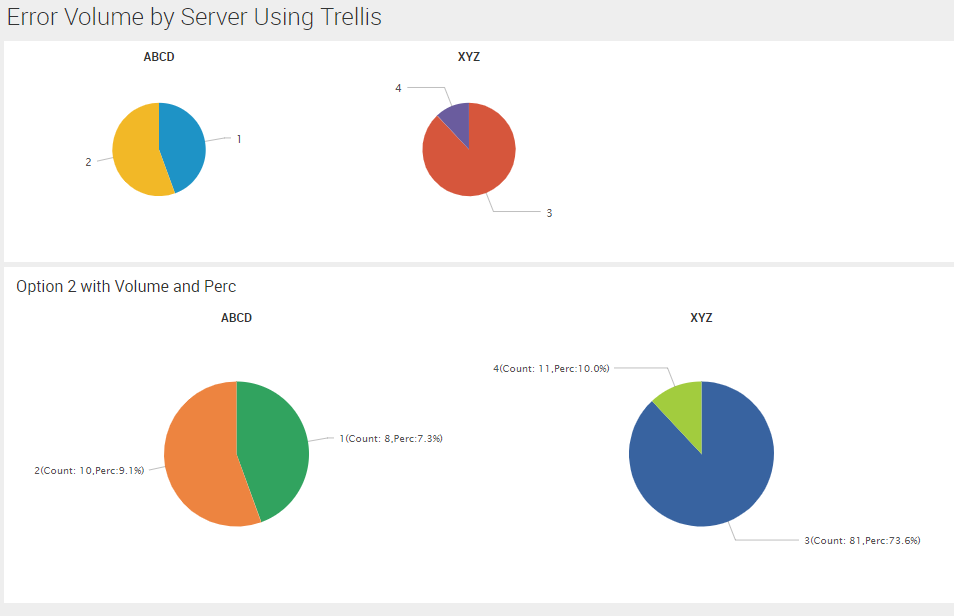
Following is a run any where dashboard code for the attached screenshot. Second Trellis Layout shows Error Volume and Percentage as Pie Slice labels, while the first one would display these details on hover. You might have to play around with Trellis Size and Panel Height to adjust visualization size as per your needs. To adjust it beyond that you would need CSS Overrides for which you can dig through old answers on Splunk Answers.
<dashboard>
  <label>Error Volume by Server Using Trellis</label>
  <row>
    <panel>
      <chart>
        <search>
          <query>| makeresults
| eval data="ABCD,1,8;ABCD,2,10;XYZ,3,81;XYZ,4,11;"
| makemv data delim=";"
| mvexpand data
| eval data=split(data,",")
| eval server=mvindex(data,0),error_value=mvindex(data,1),count=mvindex(data,2)
| table server error_value count
| stats sum(count) as count by server error_value</query>
          <earliest>-24h@h</earliest>
          <latest>now</latest>
          <sampleRatio>1</sampleRatio>
        </search>
        <option name="charting.axisLabelsX.majorLabelStyle.overflowMode">ellipsisNone</option>
        <option name="charting.axisLabelsX.majorLabelStyle.rotation">0</option>
        <option name="charting.axisTitleX.visibility">collapsed</option>
        <option name="charting.axisTitleY.visibility">collapsed</option>
        <option name="charting.axisTitleY2.visibility">collapsed</option>
        <option name="charting.axisX.abbreviation">none</option>
        <option name="charting.axisX.scale">linear</option>
        <option name="charting.axisY.abbreviation">none</option>
        <option name="charting.axisY.scale">linear</option>
        <option name="charting.axisY2.abbreviation">none</option>
        <option name="charting.axisY2.enabled">0</option>
        <option name="charting.axisY2.scale">inherit</option>
        <option name="charting.chart">pie</option>
        <option name="charting.chart.bubbleMaximumSize">50</option>
        <option name="charting.chart.bubbleMinimumSize">10</option>
        <option name="charting.chart.bubbleSizeBy">area</option>
        <option name="charting.chart.nullValueMode">gaps</option>
        <option name="charting.chart.showDataLabels">none</option>
        <option name="charting.chart.sliceCollapsingThreshold">0.01</option>
        <option name="charting.chart.stackMode">default</option>
        <option name="charting.chart.style">shiny</option>
        <option name="charting.drilldown">none</option>
        <option name="charting.layout.splitSeries">0</option>
        <option name="charting.layout.splitSeries.allowIndependentYRanges">0</option>
        <option name="charting.legend.labelStyle.overflowMode">ellipsisMiddle</option>
        <option name="charting.legend.mode">standard</option>
        <option name="charting.legend.placement">none</option>
        <option name="charting.lineWidth">2</option>
        <option name="trellis.enabled">1</option>
        <option name="trellis.scales.shared">1</option>
        <option name="trellis.size">small</option>
        <option name="height">220</option>
      </chart>
    </panel>
  </row>
  <row>
    <panel>
      <title>Option 2 with Volume and Perc</title>
      <chart>
        <search>
          <query>| makeresults
| eval data="ABCD,1,8;ABCD,2,10;XYZ,3,81;XYZ,4,11;"
| makemv data delim=";"
| mvexpand data
| eval data=split(data,",")
| eval server=mvindex(data,0),error_value=mvindex(data,1),count=mvindex(data,2)
| table server error_value count
| stats sum(count) as count by server error_value
| eventstats sum(count) as Total
| eval perc=round((count/Total)*100,1)
| eval error_value=error_value."(Count: ".count.",Perc:".perc."%)"</query>
          <earliest>-24h@h</earliest>
          <latest>now</latest>
          <sampleRatio>1</sampleRatio>
        </search>
        <option name="charting.axisLabelsX.majorLabelStyle.overflowMode">ellipsisNone</option>
        <option name="charting.axisLabelsX.majorLabelStyle.rotation">0</option>
        <option name="charting.axisTitleX.visibility">collapsed</option>
        <option name="charting.axisTitleY.visibility">collapsed</option>
        <option name="charting.axisTitleY2.visibility">collapsed</option>
        <option name="charting.axisX.abbreviation">none</option>
        <option name="charting.axisX.scale">linear</option>
        <option name="charting.axisY.abbreviation">none</option>
        <option name="charting.axisY.scale">linear</option>
        <option name="charting.axisY2.abbreviation">none</option>
        <option name="charting.axisY2.enabled">0</option>
        <option name="charting.axisY2.scale">inherit</option>
        <option name="charting.chart">pie</option>
        <option name="charting.chart.bubbleMaximumSize">50</option>
        <option name="charting.chart.bubbleMinimumSize">10</option>
        <option name="charting.chart.bubbleSizeBy">area</option>
        <option name="charting.chart.nullValueMode">gaps</option>
        <option name="charting.chart.showDataLabels">none</option>
        <option name="charting.chart.sliceCollapsingThreshold">0.01</option>
        <option name="charting.chart.stackMode">default</option>
        <option name="charting.chart.style">shiny</option>
        <option name="charting.drilldown">none</option>
        <option name="charting.layout.splitSeries">0</option>
        <option name="charting.layout.splitSeries.allowIndependentYRanges">0</option>
        <option name="charting.legend.labelStyle.overflowMode">ellipsisMiddle</option>
        <option name="charting.legend.mode">standard</option>
        <option name="charting.legend.placement">none</option>
        <option name="charting.lineWidth">2</option>
        <option name="trellis.enabled">1</option>
        <option name="trellis.scales.shared">1</option>
        <option name="trellis.size">medium</option>
        <option name="height">300</option>
      </chart>
    </panel>
  </row>
</dashboard>
| makeresults | eval message= "Happy Splunking!!!"
- Mark as New
- Bookmark Message
- Subscribe to Message
- Mute Message
- Subscribe to RSS Feed
- Permalink
- Report Inappropriate Content
While there could be several options and visualization based on your need to depict Error Volume per server by Error Code, if you are on Splunk Enterprise 6.6 or higher you can try out using Pie Chart with Trellis as one of the options.
Following is a run any where dashboard code for the attached screenshot. Second Trellis Layout shows Error Volume and Percentage as Pie Slice labels, while the first one would display these details on hover. You might have to play around with Trellis Size and Panel Height to adjust visualization size as per your needs. To adjust it beyond that you would need CSS Overrides for which you can dig through old answers on Splunk Answers.
<dashboard>
  <label>Error Volume by Server Using Trellis</label>
  <row>
    <panel>
      <chart>
        <search>
          <query>| makeresults
| eval data="ABCD,1,8;ABCD,2,10;XYZ,3,81;XYZ,4,11;"
| makemv data delim=";"
| mvexpand data
| eval data=split(data,",")
| eval server=mvindex(data,0),error_value=mvindex(data,1),count=mvindex(data,2)
| table server error_value count
| stats sum(count) as count by server error_value</query>
          <earliest>-24h@h</earliest>
          <latest>now</latest>
          <sampleRatio>1</sampleRatio>
        </search>
        <option name="charting.axisLabelsX.majorLabelStyle.overflowMode">ellipsisNone</option>
        <option name="charting.axisLabelsX.majorLabelStyle.rotation">0</option>
        <option name="charting.axisTitleX.visibility">collapsed</option>
        <option name="charting.axisTitleY.visibility">collapsed</option>
        <option name="charting.axisTitleY2.visibility">collapsed</option>
        <option name="charting.axisX.abbreviation">none</option>
        <option name="charting.axisX.scale">linear</option>
        <option name="charting.axisY.abbreviation">none</option>
        <option name="charting.axisY.scale">linear</option>
        <option name="charting.axisY2.abbreviation">none</option>
        <option name="charting.axisY2.enabled">0</option>
        <option name="charting.axisY2.scale">inherit</option>
        <option name="charting.chart">pie</option>
        <option name="charting.chart.bubbleMaximumSize">50</option>
        <option name="charting.chart.bubbleMinimumSize">10</option>
        <option name="charting.chart.bubbleSizeBy">area</option>
        <option name="charting.chart.nullValueMode">gaps</option>
        <option name="charting.chart.showDataLabels">none</option>
        <option name="charting.chart.sliceCollapsingThreshold">0.01</option>
        <option name="charting.chart.stackMode">default</option>
        <option name="charting.chart.style">shiny</option>
        <option name="charting.drilldown">none</option>
        <option name="charting.layout.splitSeries">0</option>
        <option name="charting.layout.splitSeries.allowIndependentYRanges">0</option>
        <option name="charting.legend.labelStyle.overflowMode">ellipsisMiddle</option>
        <option name="charting.legend.mode">standard</option>
        <option name="charting.legend.placement">none</option>
        <option name="charting.lineWidth">2</option>
        <option name="trellis.enabled">1</option>
        <option name="trellis.scales.shared">1</option>
        <option name="trellis.size">small</option>
        <option name="height">220</option>
      </chart>
    </panel>
  </row>
  <row>
    <panel>
      <title>Option 2 with Volume and Perc</title>
      <chart>
        <search>
          <query>| makeresults
| eval data="ABCD,1,8;ABCD,2,10;XYZ,3,81;XYZ,4,11;"
| makemv data delim=";"
| mvexpand data
| eval data=split(data,",")
| eval server=mvindex(data,0),error_value=mvindex(data,1),count=mvindex(data,2)
| table server error_value count
| stats sum(count) as count by server error_value
| eventstats sum(count) as Total
| eval perc=round((count/Total)*100,1)
| eval error_value=error_value."(Count: ".count.",Perc:".perc."%)"</query>
          <earliest>-24h@h</earliest>
          <latest>now</latest>
          <sampleRatio>1</sampleRatio>
        </search>
        <option name="charting.axisLabelsX.majorLabelStyle.overflowMode">ellipsisNone</option>
        <option name="charting.axisLabelsX.majorLabelStyle.rotation">0</option>
        <option name="charting.axisTitleX.visibility">collapsed</option>
        <option name="charting.axisTitleY.visibility">collapsed</option>
        <option name="charting.axisTitleY2.visibility">collapsed</option>
        <option name="charting.axisX.abbreviation">none</option>
        <option name="charting.axisX.scale">linear</option>
        <option name="charting.axisY.abbreviation">none</option>
        <option name="charting.axisY.scale">linear</option>
        <option name="charting.axisY2.abbreviation">none</option>
        <option name="charting.axisY2.enabled">0</option>
        <option name="charting.axisY2.scale">inherit</option>
        <option name="charting.chart">pie</option>
        <option name="charting.chart.bubbleMaximumSize">50</option>
        <option name="charting.chart.bubbleMinimumSize">10</option>
        <option name="charting.chart.bubbleSizeBy">area</option>
        <option name="charting.chart.nullValueMode">gaps</option>
        <option name="charting.chart.showDataLabels">none</option>
        <option name="charting.chart.sliceCollapsingThreshold">0.01</option>
        <option name="charting.chart.stackMode">default</option>
        <option name="charting.chart.style">shiny</option>
        <option name="charting.drilldown">none</option>
        <option name="charting.layout.splitSeries">0</option>
        <option name="charting.layout.splitSeries.allowIndependentYRanges">0</option>
        <option name="charting.legend.labelStyle.overflowMode">ellipsisMiddle</option>
        <option name="charting.legend.mode">standard</option>
        <option name="charting.legend.placement">none</option>
        <option name="charting.lineWidth">2</option>
        <option name="trellis.enabled">1</option>
        <option name="trellis.scales.shared">1</option>
        <option name="trellis.size">medium</option>
        <option name="height">300</option>
      </chart>
    </panel>
  </row>
</dashboard>
| makeresults | eval message= "Happy Splunking!!!"
- Mark as New
- Bookmark Message
- Subscribe to Message
- Mute Message
- Subscribe to RSS Feed
- Permalink
- Report Inappropriate Content
@logloganathan, were you able to try out the above example? Does it fit your needs? Please try out and confirm!
| makeresults | eval message= "Happy Splunking!!!"
- Mark as New
- Bookmark Message
- Subscribe to Message
- Mute Message
- Subscribe to RSS Feed
- Permalink
- Report Inappropriate Content
yes...its working fine Nikenilay!!
- Mark as New
- Bookmark Message
- Subscribe to Message
- Mute Message
- Subscribe to RSS Feed
- Permalink
- Report Inappropriate Content
@logloganathan for server ABCD you seem to have two rows of error value and count (similarly two rows for XYZ as well). Are error value and count multi-valued fields and if not what is the criteria for the split into two rows per server?
Is Table not sufficient for depicting the data? Also is time supposed to be considered for the output?
| makeresults | eval message= "Happy Splunking!!!"
- Mark as New
- Bookmark Message
- Subscribe to Message
- Mute Message
- Subscribe to RSS Feed
- Permalink
- Report Inappropriate Content
Hi Nike,
the data is the changing one..we have "n" number of servers and each server have "n" number of error value with count



Join the Splunk Community Slack to learn, troubleshoot, and make connections with fellow Splunk practitioners in real time!
Join Splunk User Groups to connect and learn in-person by region or remotely by topic or industry.
Supercharging Windows Security Detection Performance: Introducing Hybrid Field ...
Ditch the Manual Grind: Building AI Agents with Splunk
Cisco Data Fabric from Architecture to Investigation, Better SOC Visibility, and More ...
