
Turn on suggestions
Auto-suggest helps you quickly narrow down your search results by suggesting possible matches as you type.
Splunk Search
×
Join the Conversation
Without signing in, you're just watching from the sidelines. Sign in or Register to connect, share, and be part of the Splunk Community.
- Find Answers
- :
- Using Splunk
- :
- Splunk Search
- :
- help on eval command
Options
- Subscribe to RSS Feed
- Mark Topic as New
- Mark Topic as Read
- Float this Topic for Current User
- Bookmark Topic
- Subscribe to Topic
- Mute Topic
- Printer Friendly Page
- Mark as New
- Bookmark Message
- Subscribe to Message
- Mute Message
- Subscribe to RSS Feed
- Permalink
- Report Inappropriate Content
help on eval command

jip31
Motivator
02-06-2020
10:08 PM
I use the search below which works fine
as you can see i count hte number of hosts corresponding to a process_cpu_used_percent scale (0-20, 20-40, 40-60....)
but what I need is to have an average of process_cpu_used_percent in order to identify the number of host which are in a average scale of 0-20, 20-40, 40-60...
I tried something like this but it doenst works
eval(case(avg(process_cpu_used_percent>0 AND process_cpu_used_percent <=20,"0-20",


 `CPU`
    | fields process_cpu_used_percent host
    | eval cpu_range=case(process_cpu_used_percent>0 AND process_cpu_used_percent <=20,"0-20",
        process_cpu_used_percent>20 AND process_cpu_used_percent <=40,"20-40",
        process_cpu_used_percent>40 AND process_cpu_used_percent <=60,"40-60",
        process_cpu_used_percent>60 AND process_cpu_used_percent <=80,"60-80",
        process_cpu_used_percent>80 AND process_cpu_used_percent <=100,"80-100")
    | chart dc(host) as "Number" by cpu_range
    | search cpu_range=$tok_filtercpu$
    | append
        [| makeresults
        | fields - _time
        | eval cpu_range="0-20,20-40,40-60,60-80,80-100"
        | makemv cpu_range delim=","
        | mvexpand cpu_range
        | eval "Number"=0]
    | dedup cpu_range
    | sort cpu_range
    | transpose header_field=cpu_range
    | search column!="_*"
    | rename column as cpu_range
could you help me please??
- Mark as New
- Bookmark Message
- Subscribe to Message
- Mute Message
- Subscribe to RSS Feed
- Permalink
- Report Inappropriate Content

to4kawa
Ultra Champion
02-07-2020
02:53 AM
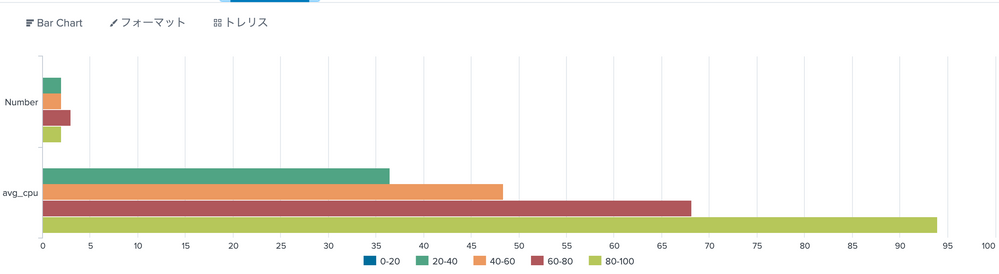
Sample:
| makeresults count=15
| eval host="host_".(random() % 4), process_cpu_used_percent=random() % 100
| table process_cpu_used_percent host
| fields process_cpu_used_percent host
| eval cpu_range=case(process_cpu_used_percent / 20 <= 1,"0-20"
    , process_cpu_used_percent / 40 <= 1,"20-40"
    , process_cpu_used_percent / 60 <= 1,"40-60"
    , process_cpu_used_percent / 80 <= 1,"60-80"
    , process_cpu_used_percent / 100 <= 1,"80-100")
| chart dc(host) as "Number" avg(process_cpu_used_percent) as avg_cpu by cpu_range
| append
    [| makeresults
    | fillnull "0-20","20-40","40-60","60-80","80-100"
    | fields - _*
    | transpose 0 column_name=cpu_range
    | rename "row 1" as Number
    | eval avg_cpu = 0]
| dedup cpu_range
| sort cpu_range
| transpose 0 header_field=cpu_range column_name=cpu_range
Result:
cpu_range   0-20    20-40   40-60   60-80   80-100
Number  0   2   2   3   2
avg_cpu 0   36.5    48.4    68.16666666666667   94

- Mark as New
- Bookmark Message
- Subscribe to Message
- Mute Message
- Subscribe to RSS Feed
- Permalink
- Report Inappropriate Content
to4kawa
Ultra Champion
02-07-2020
12:28 AM
 `CPU`
| fields process_cpu_used_percent host
| eval cpu_range=case(process_cpu_used_percent / 20 <= 1,"0-20"
, process_cpu_used_percent / 40 <= 1,"20-40"
, process_cpu_used_percent / 60 <= 1,"40-60"
, process_cpu_used_percent / 80 <= 1,"60-80"
, process_cpu_used_percent / 100 <= 1,"80-100")
| chart dc(host) as "Number" avg(process_cpu_used_percent) as avg_cpu by cpu_range
| search cpu_range=$tok_filtercpu$
| append [| makeresults
 | fillnull "0-20","20-40","40-60","60-80","80-100"
 | fields - _*
 | transpose 0 column_name=cpu_range
 | rename "row 1" as Number
 | eval avg_cpu = 0]
| dedup cpu_range
| sort cpu_range
| transpose 0 header_field=cpu_range column_name=cpu_range
how about this?
- Mark as New
- Bookmark Message
- Subscribe to Message
- Mute Message
- Subscribe to RSS Feed
- Permalink
- Report Inappropriate Content
jip31
Motivator
02-07-2020
01:56 AM
Not really
on x axis, I have 2 value (number & avg_cpu) and if i have a look to the original barchart
if it can help, i send you the xml in pj

Got questions? Get answers!
Join the Splunk Community Slack to learn, troubleshoot, and make connections with fellow Splunk practitioners in real time!
Meet up IRL or virtually!
Join Splunk User Groups to connect and learn in-person by region or remotely by topic or industry.
Get Updates on the Splunk Community!
Make Your Machine Data AI-Ready in Splunk
Every team is getting ready for AI agents.
Thursday, November 12, 2026 | 11AM PST / 2PM EST
...
Splunk Asynchronous Forwarding Explained
Splunk asynchronous forwarding is often misunderstood as simply setting autoLBVolume. That is not quite right. ...
How to Monitor AI Agents with Splunk Agent Observability
Let’s say I’m running a travel planning AI app in production. A user asks for three concise hotel options in ...
