
Join the Conversation
- Find Answers
- :
- Using Splunk
- :
- Splunk Search
- :
- Re: How to adjust Radial Gauge numeric range withi...
- Subscribe to RSS Feed
- Mark Topic as New
- Mark Topic as Read
- Float this Topic for Current User
- Bookmark Topic
- Subscribe to Topic
- Mute Topic
- Printer Friendly Page
- Mark as New
- Bookmark Message
- Subscribe to Message
- Mute Message
- Subscribe to RSS Feed
- Permalink
- Report Inappropriate Content

Hello,
I want to alter the radial gauge (default is 100).
We expect about 5,000 log entries/lines per hour and I am curious how we can change the Radial Gauge threshold/value.
Also, how can we revert the direction? I.e.: 5,000 entries is in the green and 0 would be red (because we expect a large count = good/green).
Thanks!
- Mark as New
- Bookmark Message
- Subscribe to Message
- Mute Message
- Subscribe to RSS Feed
- Permalink
- Report Inappropriate Content

I don't know how to reverse the direction but you can reverse the colors; this XML will do it:
    <option name="charting.axisLabelsX.majorLabelStyle.overflowMode">ellipsisNone</option>
    <option name="charting.axisLabelsX.majorLabelStyle.rotation">0</option>
    <option name="charting.axisTitleX.visibility">visible</option>
    <option name="charting.axisTitleY.visibility">visible</option>
    <option name="charting.axisTitleY2.visibility">visible</option>
    <option name="charting.axisX.scale">linear</option>
    <option name="charting.axisY.scale">linear</option>
    <option name="charting.axisY2.enabled">0</option>
    <option name="charting.axisY2.scale">inherit</option>
    <option name="charting.chart">radialGauge</option>
    <option name="charting.chart.bubbleMaximumSize">50</option>
    <option name="charting.chart.bubbleMinimumSize">10</option>
    <option name="charting.chart.bubbleSizeBy">area</option>
    <option name="charting.chart.nullValueMode">gaps</option>
    <option name="charting.chart.rangeValues">[0,"1000",2000,5000]</option>
    <option name="charting.chart.sliceCollapsingThreshold">0.01</option>
    <option name="charting.chart.stackMode">default</option>
    <option name="charting.chart.style">shiny</option>
    <option name="charting.drilldown">all</option>
    <option name="charting.gaugeColors">[0xBF3030,0xFFE800,0x84E900]</option>
    <option name="charting.layout.splitSeries">0</option>
    <option name="charting.legend.labelStyle.overflowMode">ellipsisMiddle</option>
    <option name="charting.legend.placement">right</option>
- Mark as New
- Bookmark Message
- Subscribe to Message
- Mute Message
- Subscribe to RSS Feed
- Permalink
- Report Inappropriate Content
I also wanted to reference this help doc (took me a little while to find): https://docs.splunk.com/Documentation/Splunk/9.0.4/DashStudio/chartsSV
It outlines that if you want to change the default 100 for the radial max fill line, just enter a new maxValue option.
- Mark as New
- Bookmark Message
- Subscribe to Message
- Mute Message
- Subscribe to RSS Feed
- Permalink
- Report Inappropriate Content


You can set the color ranges, as well as the colors, in the format editor for the radial gauge visualization:
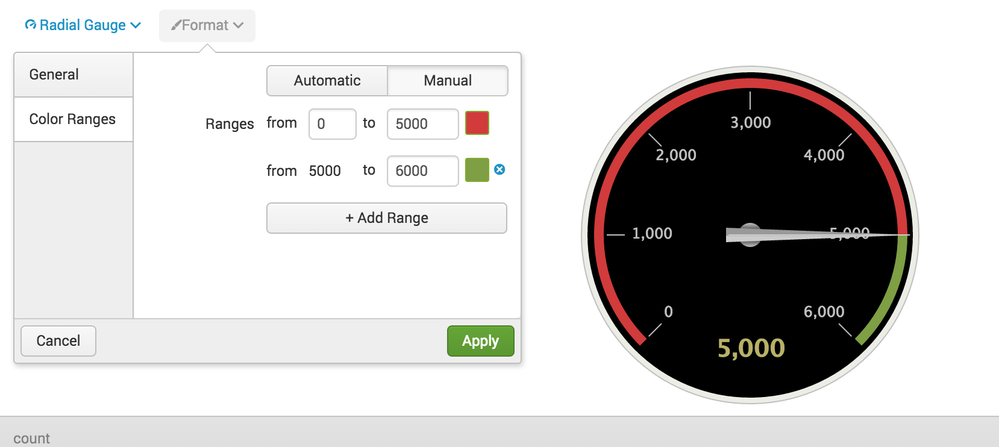
1: ![alt text]
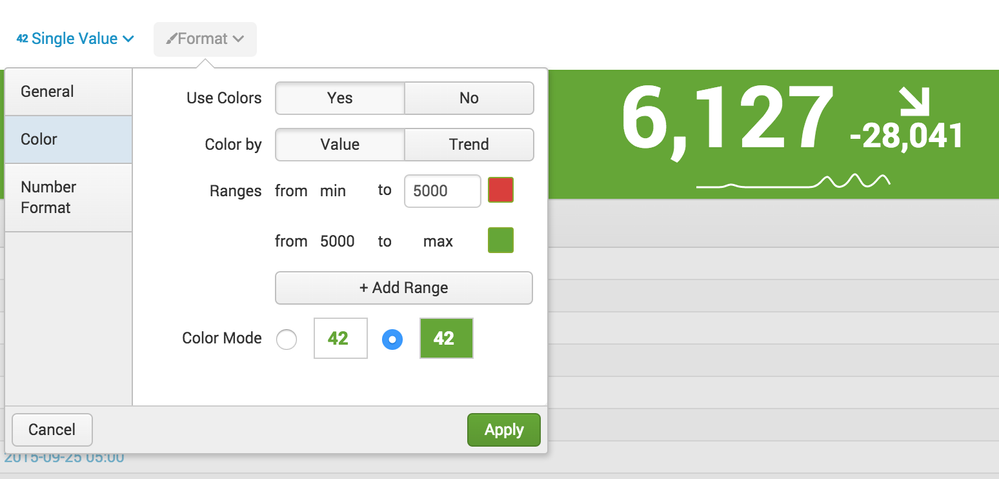
Also note that in the recently released Splunk Enterprise (version 6.3) we've updated the Single Value display to use colors in a similar fashion as the gauges do. In addition you get the recent time as a sparkline and the recent trend as an arrow/change indicator:


- Mark as New
- Bookmark Message
- Subscribe to Message
- Mute Message
- Subscribe to RSS Feed
- Permalink
- Report Inappropriate Content
I don't know how to reverse the direction but you can reverse the colors; this XML will do it:
    <option name="charting.axisLabelsX.majorLabelStyle.overflowMode">ellipsisNone</option>
    <option name="charting.axisLabelsX.majorLabelStyle.rotation">0</option>
    <option name="charting.axisTitleX.visibility">visible</option>
    <option name="charting.axisTitleY.visibility">visible</option>
    <option name="charting.axisTitleY2.visibility">visible</option>
    <option name="charting.axisX.scale">linear</option>
    <option name="charting.axisY.scale">linear</option>
    <option name="charting.axisY2.enabled">0</option>
    <option name="charting.axisY2.scale">inherit</option>
    <option name="charting.chart">radialGauge</option>
    <option name="charting.chart.bubbleMaximumSize">50</option>
    <option name="charting.chart.bubbleMinimumSize">10</option>
    <option name="charting.chart.bubbleSizeBy">area</option>
    <option name="charting.chart.nullValueMode">gaps</option>
    <option name="charting.chart.rangeValues">[0,"1000",2000,5000]</option>
    <option name="charting.chart.sliceCollapsingThreshold">0.01</option>
    <option name="charting.chart.stackMode">default</option>
    <option name="charting.chart.style">shiny</option>
    <option name="charting.drilldown">all</option>
    <option name="charting.gaugeColors">[0xBF3030,0xFFE800,0x84E900]</option>
    <option name="charting.layout.splitSeries">0</option>
    <option name="charting.legend.labelStyle.overflowMode">ellipsisMiddle</option>
    <option name="charting.legend.placement">right</option>

Join the Splunk Community Slack to learn, troubleshoot, and make connections with fellow Splunk practitioners in real time!
Join Splunk User Groups to connect and learn in-person by region or remotely by topic or industry.
[Puzzles] Solve, Learn, Repeat: Character substitutions with Regular Expressions
Splunk Community Badges!
[Puzzles] Solve, Learn, Repeat: Matching cron expressions
