
Join the Conversation
- Find Answers
- :
- Using Splunk
- :
- Dashboards & Visualizations
- :
- Re: How to set the default search time in Splunk 6...
- Subscribe to RSS Feed
- Mark Topic as New
- Mark Topic as Read
- Float this Topic for Current User
- Bookmark Topic
- Subscribe to Topic
- Mute Topic
- Printer Friendly Page
- Mark as New
- Bookmark Message
- Subscribe to Message
- Mute Message
- Subscribe to RSS Feed
- Permalink
- Report Inappropriate Content

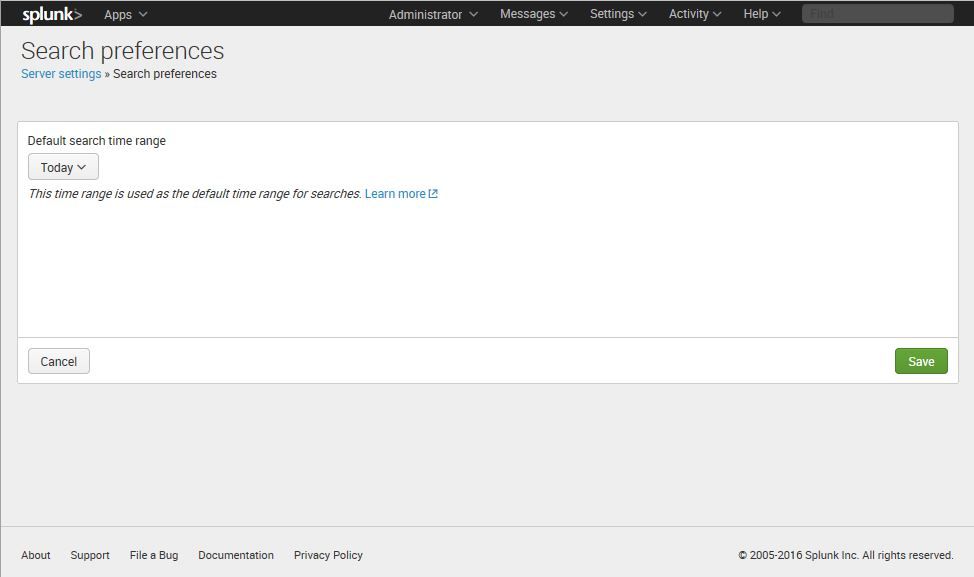
How can I set the default search time in Splunk 6? I'd prefer for my users to start their searches on the last 7 days instead of all time, but I can't find where to set it at. I tried changing the value for TimeRangePicker in the flashtimeline view to "Last 7 days" then restarting Splunk, but the nothing changed in my view. Below is the change I made:
< module name="TimeRangePicker">
    < param name="selected">Last 7 days< /param>
I made this change to the following views: flashtimeline, charting, dashboard, and dashboard_live. What am I missing?
- Mark as New
- Bookmark Message
- Subscribe to Message
- Mute Message
- Subscribe to RSS Feed
- Permalink
- Report Inappropriate Content


Further research yields this better answer:
To do this in Splunk Enterprise 6.0, use ui-prefs.conf. If you set the value in $SPLUNK_HOME/etc/system/local, all your users should see it as the default setting. For example, if your $SPLUNK_HOME/etc/system/local/ui-prefs.conf file includes:
[search]
dispatch.earliest_time = @d
dispatch.latest_time = now
The default time range that all users will see in the search app will be today.
The configuration file reference for ui-prefs.conf is here: http://docs.splunk.com/Documentation/Splunk/latest/Admin/Ui-prefsconf
We are updating the Search Manual to include this information.
I am leaving the flashtimeline workaround information here in case it's useful to people for other reasons.
- Mark as New
- Bookmark Message
- Subscribe to Message
- Mute Message
- Subscribe to RSS Feed
- Permalink
- Report Inappropriate Content

note:
Configuring the dispatch.earliest_time over the UI like shown in the post above
will set the [general_default] stanza in user-prefs.conf (so not in ui-prefs.conf)
(seen/verified in splunk 7.1.6)
- Mark as New
- Bookmark Message
- Subscribe to Message
- Mute Message
- Subscribe to RSS Feed
- Permalink
- Report Inappropriate Content

you can also make this universal/global by doing an open non-defined bracket like:
make a new app on your DS and drop this in the appname/local/ui-prefs.conf
[]
 dispatch.earliest_time = -61m@m
 dispatch.latest_time = -1m@m
- Mark as New
- Bookmark Message
- Subscribe to Message
- Mute Message
- Subscribe to RSS Feed
- Permalink
- Report Inappropriate Content

- Mark as New
- Bookmark Message
- Subscribe to Message
- Mute Message
- Subscribe to RSS Feed
- Permalink
- Report Inappropriate Content
Keep in mind that the default homepage in Splunk 6.0.2 is actually the launcher app and not the search app, so configuring just the [search] stanza will not change the setting for the homepage.
I was able to get it working in both the search app and the homepage by creating a
$SPLUNK_HOME/etc/system/local/ui-prefs.conf containing these settings:
[search]
dispatch.earliest_time = -24h
dispatch.latest_time = now

[default]
dispatch.earliest_time = -24h
dispatch.latest_time = now
- Mark as New
- Bookmark Message
- Subscribe to Message
- Mute Message
- Subscribe to RSS Feed
- Permalink
- Report Inappropriate Content
For my Splunk 6.2.0 server, specifying just the [default] section is enough to specify the default search time for the Search app. I did not need two separate [search] and [default] sections. In addition, I used @d like @ChristG instead of -24h.
[default]
dispatch.earliest_time = @d
dispatch.latest_time = now
- Mark as New
- Bookmark Message
- Subscribe to Message
- Mute Message
- Subscribe to RSS Feed
- Permalink
- Report Inappropriate Content
And ironically, setting the [default] section does not actually affect the default launcher app for me, but does affect certain other apps.
- Mark as New
- Bookmark Message
- Subscribe to Message
- Mute Message
- Subscribe to RSS Feed
- Permalink
- Report Inappropriate Content
Thanks, this is the info I needed to set the default for all users on both the Search and Home/Launcher pages!
- Mark as New
- Bookmark Message
- Subscribe to Message
- Mute Message
- Subscribe to RSS Feed
- Permalink
- Report Inappropriate Content
Thank you! This is a much better solution since everybody uses the launcher searchbox as you mention.
- Mark as New
- Bookmark Message
- Subscribe to Message
- Mute Message
- Subscribe to RSS Feed
- Permalink
- Report Inappropriate Content
Further research yields this better answer:
To do this in Splunk Enterprise 6.0, use ui-prefs.conf. If you set the value in $SPLUNK_HOME/etc/system/local, all your users should see it as the default setting. For example, if your $SPLUNK_HOME/etc/system/local/ui-prefs.conf file includes:
[search]
dispatch.earliest_time = @d
dispatch.latest_time = now
The default time range that all users will see in the search app will be today.
The configuration file reference for ui-prefs.conf is here: http://docs.splunk.com/Documentation/Splunk/latest/Admin/Ui-prefsconf
We are updating the Search Manual to include this information.
I am leaving the flashtimeline workaround information here in case it's useful to people for other reasons.
- Mark as New
- Bookmark Message
- Subscribe to Message
- Mute Message
- Subscribe to RSS Feed
- Permalink
- Report Inappropriate Content

What I am wondering is how can I make the time-frame "sticky"? ie: if the user specifies a timeframe from midnight 12/25/2014 to midnight 12/26/2014 then at all times in the future (until I pick something else) the timeframe will be showing me info for christmas 2014.
Right now, it always switches back to the default....whereas I want it always to be what I specified previously.
- Mark as New
- Bookmark Message
- Subscribe to Message
- Mute Message
- Subscribe to RSS Feed
- Permalink
- Report Inappropriate Content
@ChristG -- this only works for the Search app. The vast majority of Splunk users will start off on the default homepage, not the Splunk search app. How could we specify the default search time for all apps? In addition, @mthierbel's solution doesn't work for me either.
- Mark as New
- Bookmark Message
- Subscribe to Message
- Mute Message
- Subscribe to RSS Feed
- Permalink
- Report Inappropriate Content
@stefanlasiewski -- I'm surprised applying the setting under [default] is not working for you. Which directory is your ui-prefs.conf in? Are its settings taking effect for the [search] app screen?
- Mark as New
- Bookmark Message
- Subscribe to Message
- Mute Message
- Subscribe to RSS Feed
- Permalink
- Report Inappropriate Content
I added the [default] parameter to $SPLUNK_HOME/etc/system/local/ui-prefs.conf and restarted Splunk.
- Mark as New
- Bookmark Message
- Subscribe to Message
- Mute Message
- Subscribe to RSS Feed
- Permalink
- Report Inappropriate Content
What I know is in the docs (http://docs.splunk.com/Documentation/Splunk/6.0/Search/Selecttimerangestoapply#Change_the_default_se... "the stanza name needs to match the dashboard ID for that view." If that's not working for you, let me know and I will investigate further.
- Mark as New
- Bookmark Message
- Subscribe to Message
- Mute Message
- Subscribe to RSS Feed
- Permalink
- Report Inappropriate Content
@ChrisG, can you tell me how you selected the name of the stanza in your above example? The docs only mention the special [default] stanza. Is it simply the name of the view?
- Mark as New
- Bookmark Message
- Subscribe to Message
- Mute Message
- Subscribe to RSS Feed
- Permalink
- Report Inappropriate Content
Yes, this change will require a restart.
- Mark as New
- Bookmark Message
- Subscribe to Message
- Mute Message
- Subscribe to RSS Feed
- Permalink
- Report Inappropriate Content
this did not work for me... does Splunk need to be restarted ?
- Mark as New
- Bookmark Message
- Subscribe to Message
- Mute Message
- Subscribe to RSS Feed
- Permalink
- Report Inappropriate Content
- Mark as New
- Bookmark Message
- Subscribe to Message
- Mute Message
- Subscribe to RSS Feed
- Permalink
- Report Inappropriate Content
Excellent, thank you ChrisG!
- Mark as New
- Bookmark Message
- Subscribe to Message
- Mute Message
- Subscribe to RSS Feed
- Permalink
- Report Inappropriate Content
For a workaround, you can enable flashtimeline. You can update the <view> tag in flashtimeline.xml from
<?xml version="1.0"?>
<view onunloadCancelJobs="False" autoCancelInterval="100" isDashboard="False" type="redirect" target="search">
<!-- autoCancelInterval is set here to 100 -->
...
to
<?xml version="1.0"?>
<view onunloadCancelJobs="False" autoCancelInterval="100">
<!-- autoCancelInterval is set here to 100 -->
...
and then use use /app/search/flashtimeline instead of use /app/search/search

Join the Splunk Community Slack to learn, troubleshoot, and make connections with fellow Splunk practitioners in real time!
Join Splunk User Groups to connect and learn in-person by region or remotely by topic or industry.
[Puzzles] Solve, Learn, Repeat: Matching cron expressions
Design, Compete, Win: Submit Your Best Splunk Dashboards for a .conf26 Pass
May 2026 Splunk Expert Sessions: Security & Observability
